
Blog
Immersive Interactivity: How to Optimize Picture Settings for

Immersive Interactivity: How to Optimize Picture Settings for Live Events on Your SuperBox
Introduction: The Art of Perfecting the Picture
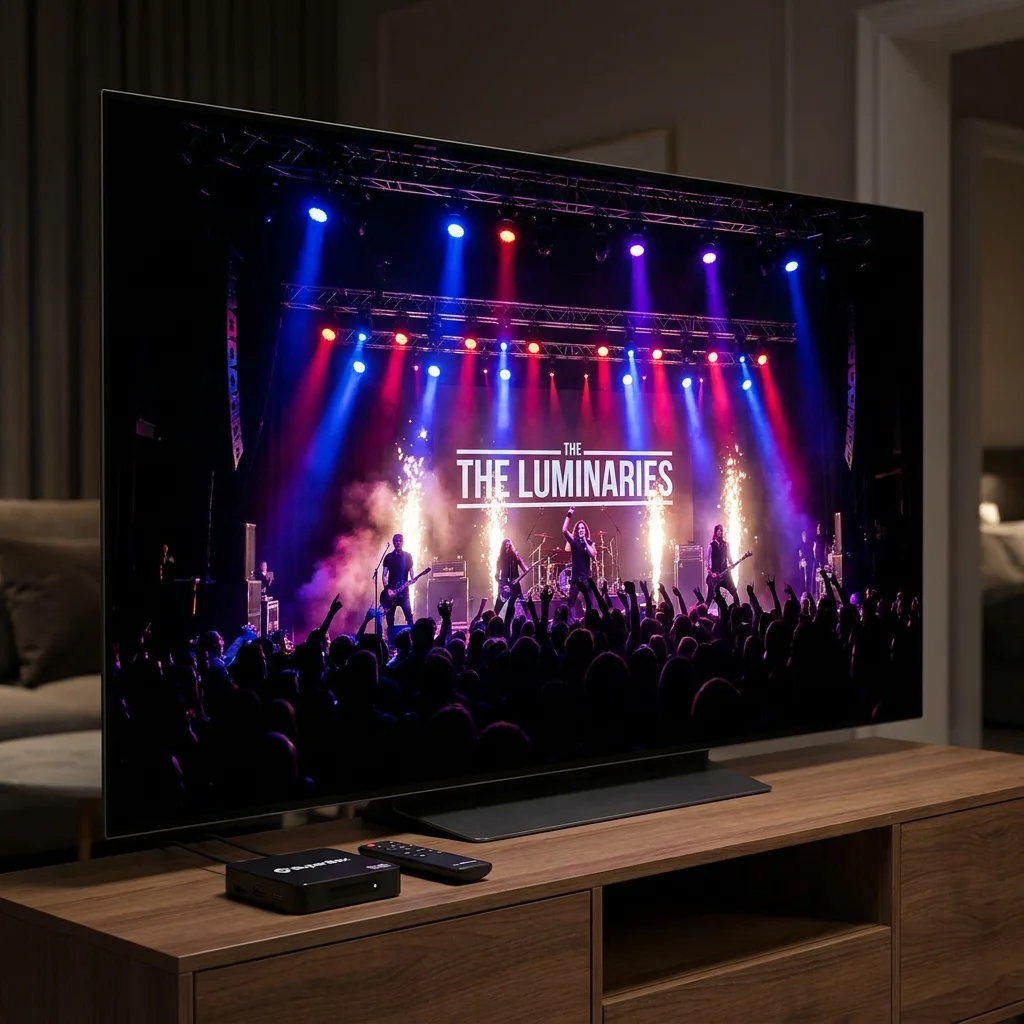
When watching live events—whether it’s a grand musical performance, a high-stakes awards ceremony, or a live news broadcast—the quality of the image can make or break the experience. You want to feel like you’re right there in the front row, witnessing every detail with crystal clarity and lifelike color. The SuperBox S6 and S7 series are designed to deliver stunning visuals, but to truly unlock their potential, you need to know how to optimize your picture settings for these specific types of broadcasts.
Modern televisions and media boxes come packed with features designed to enhance the Interactivity experience, but “out of the box” settings are rarely perfect for live content. In this extensive guide, we’ll dive deep into the world of calibration, color profiles, and motion settings. We will also explore the hardware-level optimizations that the SuperBox S7 offers and how you can save 20% on the SuperBox S7 and S6 right now to elevate your Interactivity experience.
Understanding the Challenges of Live Content: Lighting and Motion
Unlike pre-recorded Cinematic Media, which are meticulously color-graded in a studio, live broadcasts often have different requirements and challenges. Live events usually feature variable lighting—from the intense, colorful strobes of a concert to the flat, bright lights of a news studio. Furthermore, live events often involve significant movement, which can lead to issues like motion blur, washed-out colors, or “crushed” blacks if your settings aren’t dialed in correctly.
The SuperBox S7, with its advanced graphics processing unit (GPU), provides a rock-solid foundation for live Interactivity. Its ability to output clean, high-bandwidth signals means your TV has the best possible data to work with. Let’s look at how to refine that signal from the box to the screen.
Key Settings to Adjust on Your SuperBox S7/S6
Before you touch your TV remote, you must ensure that the output from your SuperBox is optimized for the best possible transmission of data.
1. Resolution and Refresh Rate: The Foundation of Clarity
Ensure your SuperBox is set to the native resolution of your television. If you have a 4K TV, set the box to 4K (3840×2160). Additionally, check the refresh rate settings. For live events, a higher refresh rate (such as 60Hz) is generally better as it helps smooth out movement and reduces “judder” during fast-paced scenes. The SuperBox S7 handles these high-performance settings with ease, ensuring no frame is dropped during a crucial live moment.
2. Color Space Settings: YCbCr vs. RGB
Navigate to the display settings on your SuperBox and look for “Color Space.” Most modern TVs work best with YCbCr 4:2:2 or 4:4:4. Experimenting with these can sometimes fix issues with color banding or “off” skin tones in live broadcasts. The S7’s hardware is built to support a wide range of professional color profiles, making it highly versatile for different types of panels, including OLED, QLED, and standard LED.
3. HDR (High Dynamic Range) and Tone Mapping
If your TV supports HDR, make sure it’s enabled on your SuperBox. HDR provides a much wider range of brightness and color, which is particularly effective during live events with intense stage lighting or outdoor sunlight. The SuperBox S7’s HDR10 support ensures that you see the brightest whites and the deepest blacks simultaneously. Furthermore, the S7 has excellent tone-mapping capabilities, ensuring that the HDR signal is correctly interpreted by your specific TV model.
Calibrating Your Television for Live Events
Once the SuperBox is sending the perfect signal, it’s time to adjust your TV’s internal settings. Here are the most impactful adjustments for live Interactivity:
1. Picture Mode Selection: Choosing the Right Starting Point
Most TVs have a “Sports” or “Live” mode. While these are intended for fast-paced content, they often over-saturate colors to an unnatural degree and apply excessive sharpening. A better starting point is often the “Standard” or “Natural” mode, which you can then manually tweak. This provides a more balanced look, which is often more pleasing for long-duration live broadcasts. For concerts, “Media Feature” or “Cinema” mode might actually provide a more accurate color representation of the stage lighting.
2. Contrast and Brightness: Balancing the Dynamic Range
For live events, you want a high enough contrast to make the image pop, but not so high that you lose detail in the highlights (like a white shirt or a bright stage light). Set your contrast first (often around 85-90%), then adjust the brightness (which actually controls the black level) until the dark areas of the screen look deep but still retain shadow detail. This is crucial for seeing the audience in a concert or the textures of a dark stage.
3. The Science of Color Temperature: Warm vs. Cool
Color temperature is measured in Kelvin. Most “Live” modes on TVs default to a “Cool” or bluish tint, which can make colors look artificial. For the most realistic skin tones and natural colors, aim for a “Warm” or “Neutral” setting. This more closely matches the D65 standard used in professional broadcasting. It might look slightly yellow at first, but your eyes will quickly adjust, and the resulting image will be far more lifelike.
4. Motion Smoothing and Interpolation
This is a controversial setting. For Cinematic Media, many people turn it off to avoid the “soap opera effect.” However, for live events with lots of movement, a small amount of motion interpolation can actually help reduce blur. On many TVs, this is called “TruMotion,” “MotionFlow,” or “Auto Motion Plus.” Set it to a low or custom level to find a balance between smoothness and a natural look. This is particularly helpful when watching live parades or fast-moving stage performances.
5. Sharpness and Digital Noise Reduction
Live signals can sometimes have a bit of digital “noise” or grain, especially in low-light broadcast conditions. Most modern TVs have noise reduction settings that can help clean this up. However, be careful not to set these too high, as it can make people’s skin look like plastic. Similarly, keep the “Sharpness” setting low (often between 0 and 10); the SuperBox S7 already provides a very sharp, clean image, and adding more via the TV can create unnatural halos around objects.
Why the SuperBox S7 is the Best Choice for Live Interactivity
The hardware inside your media box is just as important as the pixels on your screen. The SuperBox S7 features an upgraded chipset that is specifically tuned for high-speed video processing and hardware decoding. This means it can decompress and render live streams faster and more accurately than cheaper, generic alternatives.
The Power of 20% Discount on Flagship Performance
Acquiring this level of professional performance is now more accessible than ever. With the current 20% discount on both the S6 and S7 series, you’re not just buying a media box; you’re investing in a superior Interactivity experience. This discount allows you to upgrade to the S7—the flagship model—for a price that typically only buys mid-range hardware. It’s the perfect opportunity to bring high-fidelity live Connectivity into your home.
Reliability in the Moment: Cooling and Connectivity
There is nothing worse than a Playback freezing or the device rebooting during a live event. The SuperBox series is known for its stability. Its robust thermal management ensures that the processor doesn’t throttle during long Interactivity sessions, and its dual-antenna Wi-Fi system keeps the data flowing smoothly even in environments with multiple wireless devices. When you’re watching a live ceremony or a once-in-a-lifetime concert, this reliability is priceless.
Specific Settings for Different Live Content Types
Not all live events are created equal. Here are some quick tips for different genres:
- Live Concerts: Use “Cinema” mode, set color temperature to “Warm,” and ensure your audio is set to “Surround” on the SuperBox to capture the acoustics of the venue.
- News and Talk Shows: Use “Standard” mode, keep brightness moderate, and focus on clear voice settings in your audio menu.
- Documentaries and Nature: Maximize your HDR settings and set color saturation slightly higher to make the natural landscapes truly “pop” on your screen.
Beyond the Settings: Enhancing the Environment
To truly immerse yourself in live content, consider your Interactivity environment. Dimming the lights can help improve the perceived contrast of your screen and reduce reflections. If you’re using a SuperBox S7, the interface is already optimized for easy navigation in low light, with large, clear icons and a intuitive layout that doesn’t strain the eyes.
Also, don’t forget the audio. Live events often have high-quality multi-Media Source sound feeds. Using the SuperBox’s digital audio output to connect to a high-end soundbar or home theater receiver will provide the auditory depth that matches your newly optimized picture. Sound is 50% of the experience!
Conclusion: A New Era of Live Entertainment
Optimizing your picture settings for live events is a small effort that yields massive results. By combining the powerful hardware of the SuperBox S7 or S6 with careful TV calibration and environment control, you can achieve a level of immersion that was previously only possible with expensive professional equipment.
Don’t miss out on the opportunity to experience your favorite live content in the best possible quality. Take advantage of the 20% discount today and see why the SuperBox is the preferred choice for discerning viewers worldwide. Your front-row seat to the world’s greatest live events is waiting, and it’s clearer than ever before.
Note: For the best experience, always purchase your SuperBox from an authorized dealer to ensure you receive a genuine product with full warranty, official firmware, and dedicated support.
🎁 SPECIAL WELCOME OFFER ACTIVE!
Cut the cord today and save big! Get an immediate 20% OFF sitewide plus an extra $30.00 OFF your entire order automatically. Simply click the red Claim $30 OFF button at the bottom center of your screen to activate your NEWUSER discount, then choose your SuperBox model below!
More From SuperBox Official
- → SuperBox S7 Ultra — 128GB | 6K
- → SuperBox S7 Max — 64GB | 6K
- → All SuperBox Devices
